AI-powered Development Tools 2026: GitHub Copilot vs Cursor - The Ultimate Guide for Developers
Practical guide to AI-assisted development with GitHub Copilot and Cursor: setup, comparison, plans and models. Updated September 2026.
84 percent of developers use AI tools or plan to. That is the finding of the Stack Overflow survey 2025; a year earlier it was 76 percent. The same survey shows the other side: 46 percent distrust the accuracy of these tools, only 33 percent trust it. GitHub Copilot and Cursor are the two best-known examples. This guide covers setup, workflow, pricing and limits of both. Every figure here was checked against vendor documentation on 8 September 2026.
What are AI-powered Development Tools?
AI-powered development tools suggest code while you type, answer questions about your own codebase and now carry out whole assignments on their own. Behind them sit large language models that receive the open editor, the surrounding files and the chat history so far as context. The products differ less in the model, which is often the same one, than in two other points: how much context they collect and how far they may act without asking.
What the Tools Measurably Deliver
How much time these tools actually save is more open than the product pages suggest. In a randomised controlled trial by METR, 16 experienced open-source developers worked through 246 issues in repositories they maintain themselves, mostly with Cursor Pro. With AI assistance they took 19 percent longer. Beforehand they had expected a 24 percent speed-up; afterwards they still believed they had been 20 percent faster. The authors explicitly caution that this says nothing about other tasks, other tools or unfamiliar codebases. One lesson survives anyway: the benefit depends on the task, and your own impression is not a measurement.
GitHub Copilot: The Established Market Leader
What is GitHub Copilot?
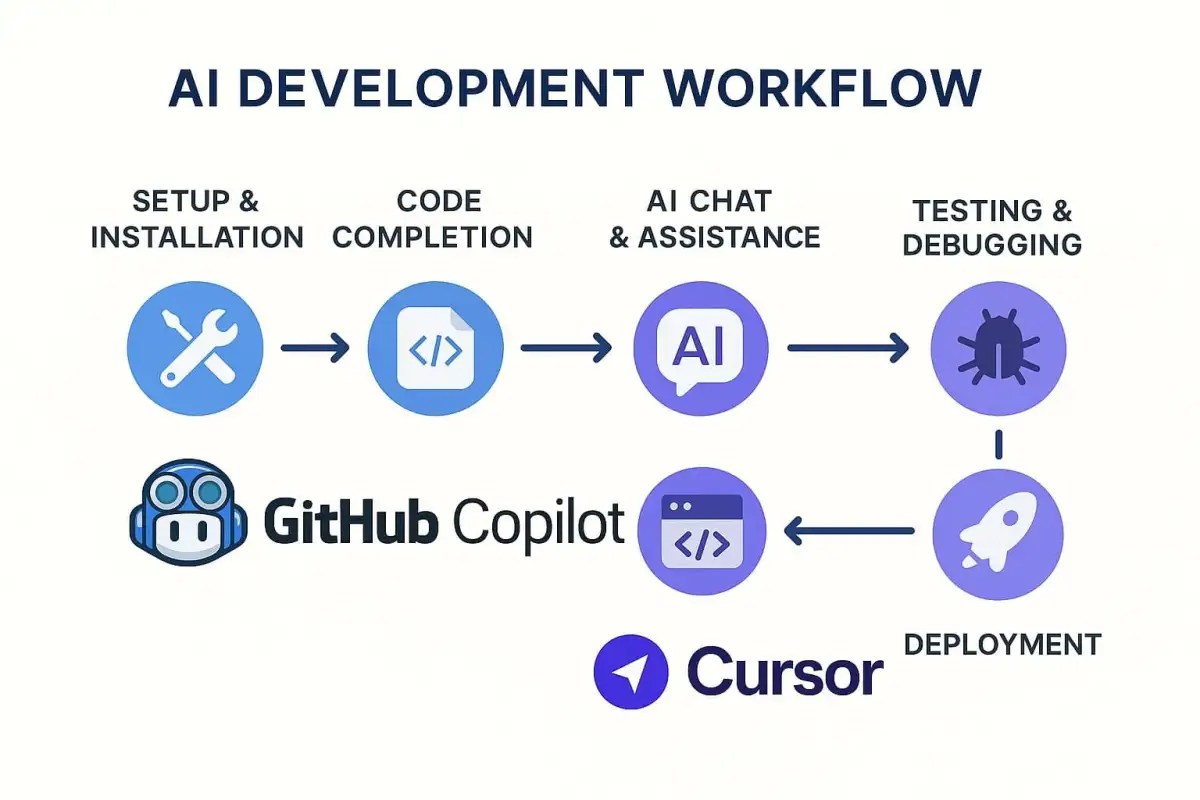
GitHub Copilot is GitHub’s AI assistant, developed together with OpenAI. The editor plugin of the early days has grown into a product spanning several surfaces. The documentation lists the IDE, github.com, GitHub Mobile, the GitHub CLI and a dedicated desktop application for agent-driven development. The models no longer come from OpenAI alone either: the model reference lists close to thirty models from OpenAI, Anthropic, Google, Microsoft, Moonshot AI and xAI.
What Has Changed Since 2025
The coding agent is no longer a preview. It has been generally available since 25 September 2025. You assign it an issue, it works in its own environment and opens a pull request for review.
Copilot CLI. The terminal agent has been generally available since 25 February 2026 and is included in the Pro, Pro+, Business and Enterprise plans; in Business and Enterprise an administrator has to enable it.
Code review with your own rules. Agent skills and MCP servers for Copilot code review have been generally available since 29 July 2026. Teams add their own SKILL.md files; the MCP connection stays read-only.
Usage-based billing. On 1 June 2026 GitHub replaced premium request units with AI credits. What is counted now is tokens rather than requests, at the published API rates of each model. Code completions and next edit suggestions remain included in every plan and consume no credits.
The plans. Free and Student cost nothing and pick the model automatically. Pro is 10 US dollars a month, Pro+ 39 and Max 100; Business and Enterprise are 19 and 39 US dollars per seat. The monthly allowance rises with the price: Pro gets 1,000 base credits plus 500 flex credits, Pro+ 3,900 plus 3,100, Max 10,000 plus 10,000 (plan overview).
The newest model. GPT-6 Astra has been selectable since 4 September 2026 in Pro+, Max, Business and Enterprise; the rollout is gradual.
GitHub Copilot Setup - Step by Step
Prerequisites
GitHub account with Copilot access
Supported IDE (VS Code, JetBrains, Visual Studio, etc.)
Installation in VS Code
Plugin Installation: Search for “GitHub Copilot” in the VS Code Extension Marketplace
Authentication: Follow the instructions for GitHub login
Activation: Check the Copilot icon in the status bar
Optimize Configuration
// Enable advanced suggestions
"github.copilot.enable": {
    "*": true,
    "yaml": false,
    "plaintext": false
}
Best Practices for GitHub Copilot
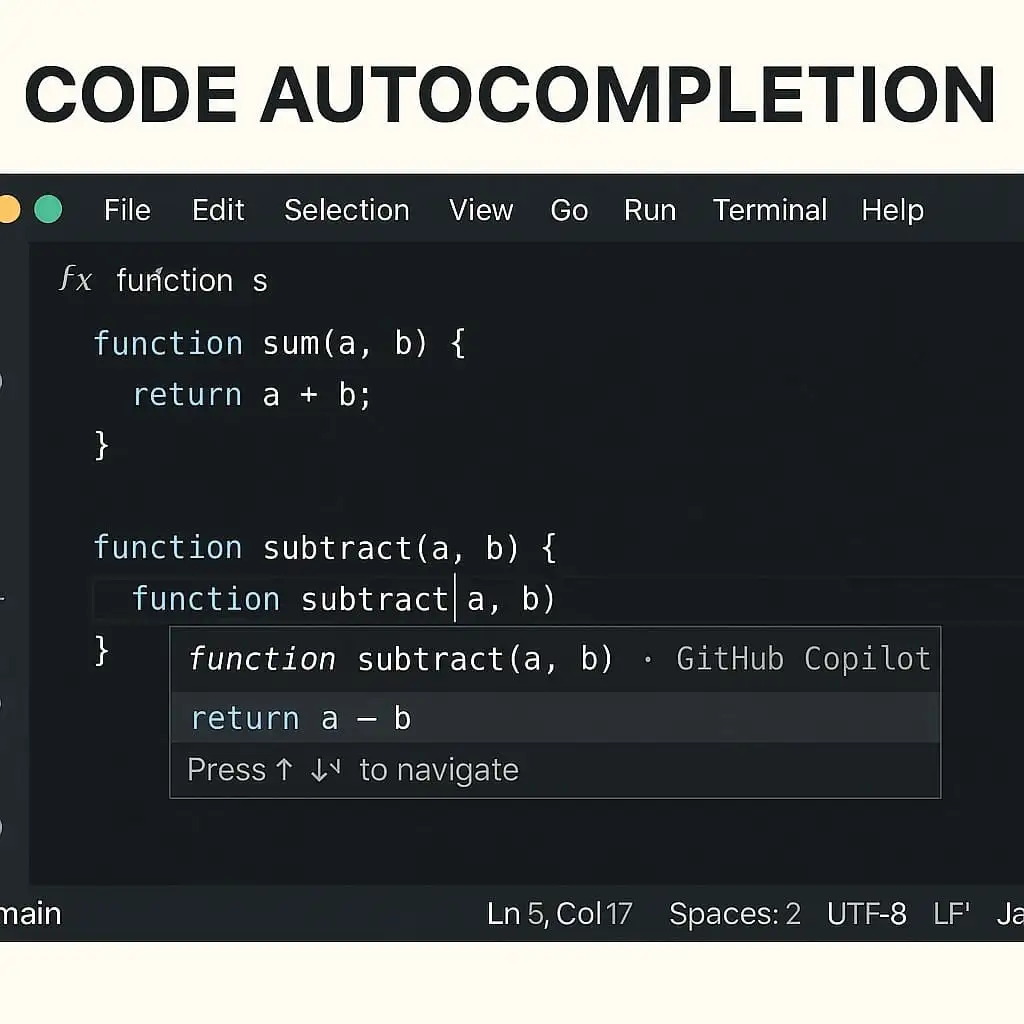
1. Effective Prompt Creation
Set clear goals: Start with a high-level description of your intention:
/*
Create a Markdown editor in Next.js with the following features:
- Use React Hooks
- State for Markdown with default text
- Live preview during input
- Support for basic Markdown syntax
*/
2. Provide Concrete Examples
// Extract names from array of arrays
// Desired result: ['John', 'Jane', 'Bob']
const data = [
  [{ name: 'John', age: 25 }, { name: 'Jane', age: 30 }],
  [{ name: 'Bob', age: 40 }]
];
3. Break Down Complex Tasks
Step 1: Implement basic function
Step 2: Add error handling
Step 3: Write tests
Step 4: Optimization
Cursor: The Innovative Challenger
What is Cursor?
In its own documentation Cursor no longer calls itself an editor but a “coding agent for building ambitious software”. The editor underneath has stayed: according to the migration guide it is “based upon the VS Code codebase” and will import extensions, themes, settings and keybindings from an existing VS Code installation. The model reference is considerably shorter than Copilot’s and split into two billing pools: “Cursor Models” with Composer 2.5 plus Grok 4.5 and 4.6, and “Other Models” with Claude Opus 5, Claude Sonnet 5, Claude Fable 5.1, the three GPT-5.6 variants Luna, Sol, Terra as well as Gemini 3.1 Pro and Gemini 3.8 Flash.
Cursor’s Core Functions
Advanced Code Completion
Multi-line Edit Suggestions: Cursor can suggest multi-line changes
Next Cursor Position Prediction: Intelligent prediction of the next cursor position
Smart Rewrites: Automatic correction and improvement of code
Integrated Chat Features
Codebase Queries: Search your entire codebase with natural language
Code References: Reference specific code blocks or files
Image Support: Drag-and-drop images for visual context
Web Search Integration: Current information directly in code queries
Cursor Installation and Setup
Windows Installation
Download: Visit cursor.com and download the Windows version
Installation: Double-click the .exe file and follow the installation wizard
First Login: Sign in with your preferred account
Linux/Ubuntu Installation
# Download the AppImage
chmod +x cursor-*.AppImage

# FUSE installation (if needed)
sudo apt-get install libfuse2

# Run Cursor
./cursor-*.AppImage
Desktop Integration (Linux)
# Move AppImage to /opt
sudo mv cursor-*.AppImage /opt/cursor.appimage

# Create desktop entry
sudo nano /usr/share/applications/cursor.desktop

[Desktop Entry]
Name=Cursor
Exec=/opt/cursor.appimage
Icon=/opt/cursor.png
Type=Application
Categories=Development;
Cursor Productivity Hacks
1. Configure Global AI Rules
- Don't give high-level advice
- Respond with actual code, avoid chatter
- Be casual and treat me as an expert
- Don't mention that you're an AI
2. Cmd+K for Inline Code Generation
# Prompt: "Create a function for Fibonacci calculation"
def fibonacci(n):
    if n <= 1:
        return n
    return fibonacci(n-1) + fibonacci(n-2)
3. Agent Mode for Multi-File Changes
Agent Mode can make complex changes across multiple files by understanding the entire project context.
GitHub Copilot vs Cursor: The Detailed Comparison
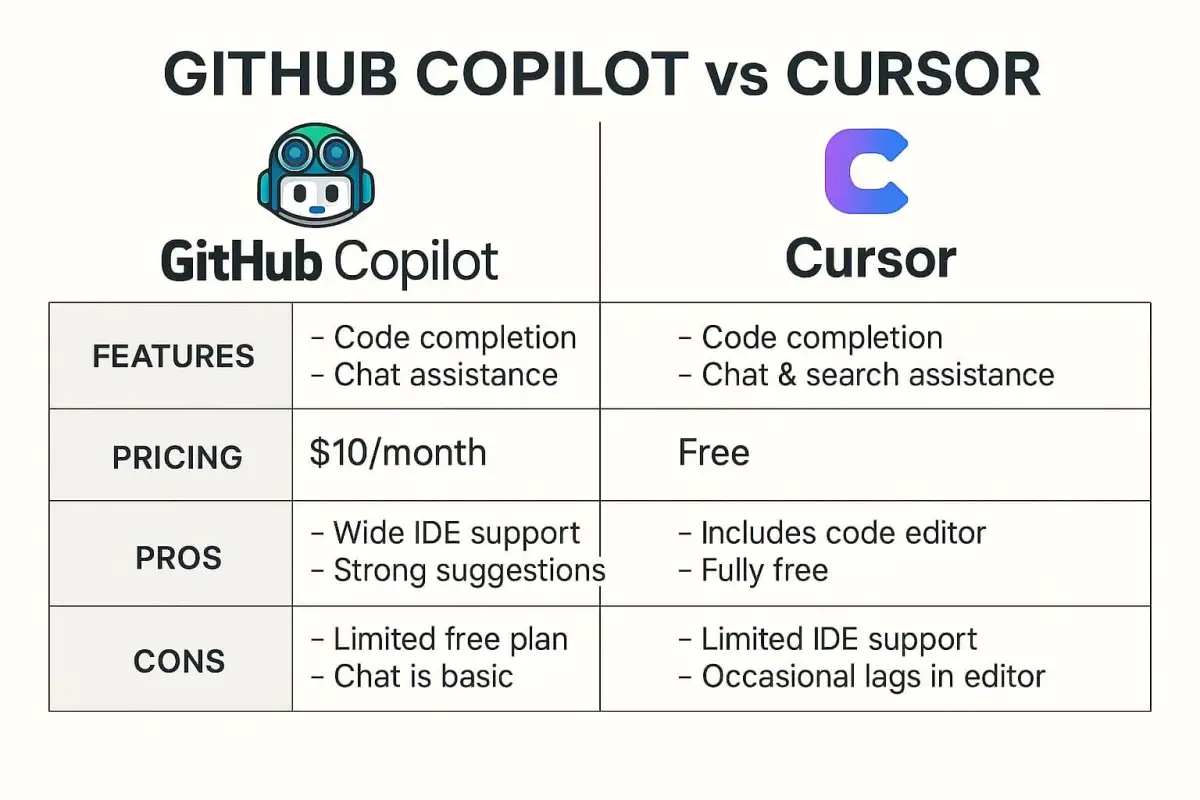
Feature Comparison
| Feature | GitHub Copilot | Cursor |
|---|---|---|
| Surface | Extension for IDEs, plus web, mobile, CLI and desktop app | standalone editor on the VS Code codebase |
| Price per month | Free; Pro $10; Pro+ $39; Max $100; Business $19 and Enterprise $39 per seat | Hobby free; Pro $20; Pro Plus $60; Ultra $200; Teams $40 per seat, premium seat $120 |
| Billing | AI credits by token, completions free of charge | two usage pools: “Cursor Models” and “Other Models” |
| Models | close to thirty, among them GPT-6 Astra, Claude Opus 5, Gemini 3.8 Flash, Grok 4.6, Kimi K3 | Composer 2.5, Grok 4.5 and 4.6, Claude Opus 5, Claude Sonnet 5, GPT-5.6, Gemini 3 |
| Completion | inline suggestions and next edit suggestions | tab completion, multi-line |
| Agent without editor | coding agent since 25 Sep 2025, Copilot CLI since 25 Feb 2026 | Cloud Agents |
| Code review | Copilot code review, agent skills and MCP since 29 Jul 2026 | Bugbot |
| Project context | GitHub integration across repository, issues and pull requests | indexing of the project |
| Installation | extension in an existing IDE | separate download, VS Code settings importable |
| Local models | not offered in the documentation | not listed in the model reference |
When Should You Choose GitHub Copilot?
GitHub Copilot is ideal for:
Existing IDE workflows (JetBrains, Visual Studio)
Teams with strong GitHub integration
Enterprise environments with specific compliance requirements
Developers who want to gradually introduce AI features
When Should You Choose Cursor?
Cursor is perfect for:
AI-first development approaches
Complex projects with extensive multi-file changes
Experimental development with various AI models
Teams that want maximum AI integration
Practical Use Cases and Workflows
Workflow 1: API Development with GitHub Copilot
// 1. Comment as prompt
// Create a REST API for user management with Express.js

// 2. Copilot generates basic structure
const express = require('express');
const app = express();

// 3. Further details through comments
// GET /users - Retrieve all users
app.get('/users', async (req, res) => {
  // Copilot auto-completes
});
Workflow 2: React Component with Cursor
// Cursor Agent Mode: "Create a reusable Button component"
// Activate Cmd+K, enter prompt, Accept to take over

import React from 'react';
import PropTypes from 'prop-types';

const Button = ({
  variant = 'primary',
  size = 'medium',
  onClick,
  children,
  disabled = false
}) => {
  // Cursor generates complete implementation
  const baseClasses = 'font-medium rounded focus:outline-none';
  // ... further implementation
};
Performance Optimization Strategies
Copilot Performance Tips
Clear Issue Descriptions: Well-structured GitHub Issues for better Copilot Agent results
Contextual Comments: Use meaningful comments for better suggestions
Iterative Refinement: Use chat for gradual improvements
Cursor Efficiency Hacks
Codebase Indexing: Let Cursor understand your entire codebase
Custom Rules: Define project-specific AI behavior rules
Multi-Model Strategy: Use different models for different tasks
Security and Best Practices
Code Security with AI Tools
Secure Development
Code Review: Always review AI-generated code
Sensitive Data: No API keys or passwords in prompts
Testing: Comprehensive tests for AI-generated code
Enterprise Considerations
Data Policies: Understand how AI tools process your data
Compliance: Consider industry-specific requirements
Team Training: Training for effective AI tool usage
Outlook: What Already Ships in 2026
Emerging Trends
Multi-Agent Systems
What was an outlook in 2025 has shipped. Copilot’s coding agent has been generally available since September 2025, the command-line version since February 2026, and Cursor runs the same pattern with its Cloud Agents. The open question is no longer whether such agents produce pull requests, but who reads them. The effort shifts from writing to reviewing.
Local Models Are Still Missing
This section predicted in 2025 that Cursor would integrate local models. That prediction still cannot be backed up. The Cursor model reference lists only models running on the vendors’ servers, and GitHub documents no local execution for Copilot either. Privacy is therefore not handled on your own machine but through operating modes and policies: privacy mode for Cursor teams, and the model and access restrictions an organisation can set in Copilot. Anyone who really needs to work offline needs a different tool.
Context-Aware AI
Cursor’s project indexing and Copilot’s access to repository, issues and pull requests aim at the same thing: the assistant should know the project, not merely the open file. How well that works now depends less on the model than on which rules and skills a team has put in place.
Conclusion and Recommendations
For Beginners
Start with GitHub Copilot if you:
Work in existing IDE workflows
Prefer gradual AI integration
Use strong GitHub integration
For Advanced Users
Choose Cursor if you:
Practice AI-first development
Develop complex multi-file projects
Seek maximum AI integration
Hybrid Approach
Many developers use both tools depending on project requirements. GitHub Copilot for daily development in familiar IDEs, Cursor for experimental projects and complex AI-assisted tasks.
Next Steps
Test Both Tools: Use the free tiers for initial experience
Experiment with Prompts: Develop effective prompt strategies
Join Communities: Follow updates and best practices in developer communities
Integrate Workflow: Adapt the tools to your specific development processes
Both vendors change plans and models on a monthly rhythm. The figures here are from 8 September 2026 and belong on the linked pricing pages before any purchase decision. And the METR study above remains the soberest advice in this text: measure the gain on your own project instead of trusting the feeling of being faster.